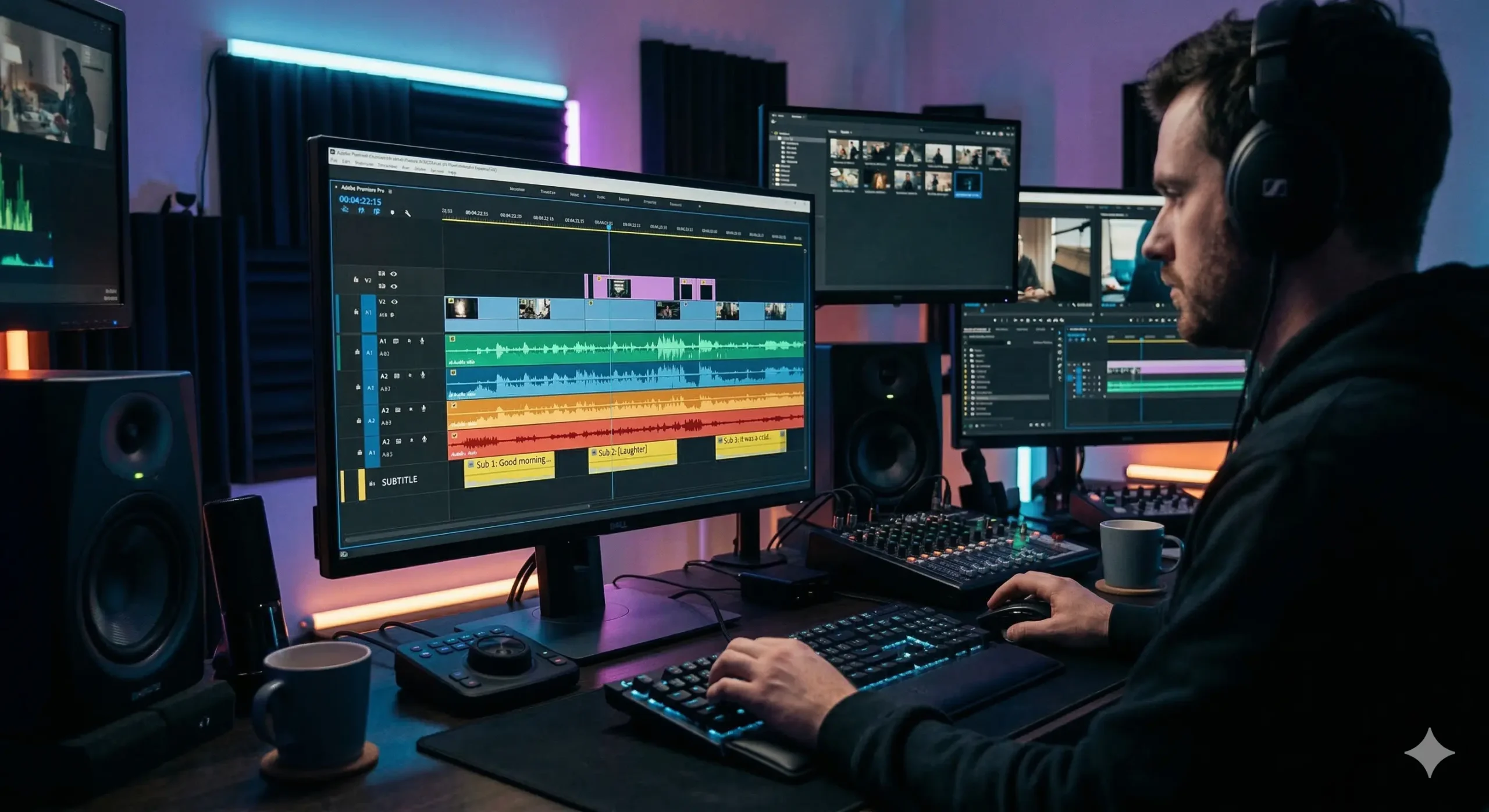
Mastering how to add captions in premiere is no longer just a neat editing trick; in 2026, it is an absolute survival skill for anyone creating video content. Whether you are cutting a gritty documentary, producing hyper-fast short-form content for TikTok and Reels, or optimizing corporate tutorials for silent scrolling, your text on screen is the anchor that dictates your audience’s dwell time and engagement.
I know Adobe Premiere Pro can sometimes feel like you are staring at the dashboard of an alien spaceship, but I promise you, unlocking this specific workflow is entirely doable and incredibly rewarding.
You do not want a generic, clunky text layer that looks like a 2010 PowerPoint presentation. You want dynamic, highly optimized, and visually stunning text that forces viewers to stop scrolling and start watching.
This exhaustive, seamlessly categorized guide is designed to walk you through every single aesthetic, technical, and algorithmic strategy so you can dominate your timeline and ensure your next export is an absolute masterpiece.
The Ultimate Beginner Guide on How to Add Captions in Premiere
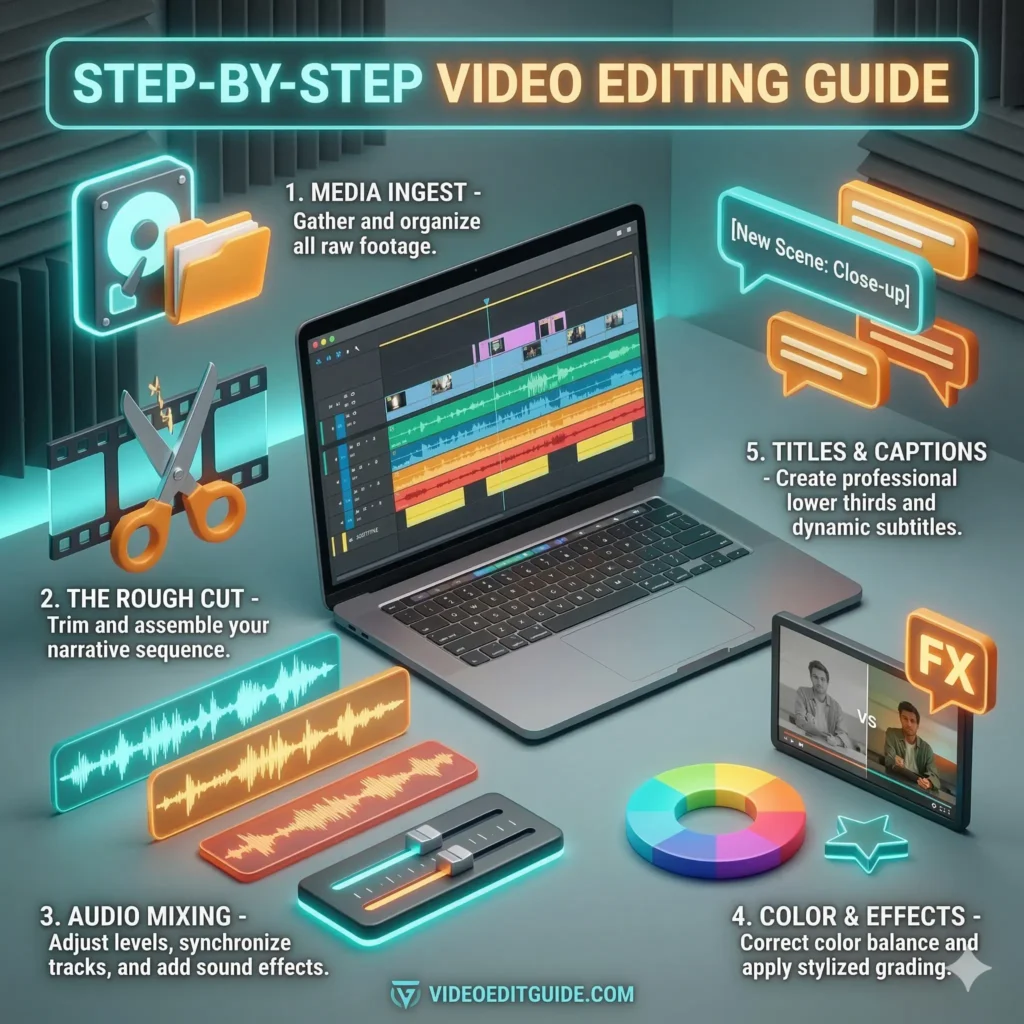
If you are opening the software for the first time, learning how to add captions in premiere requires understanding the basic layout of the text workspace. These core steps will transform your intimidating timeline into a highly organized, text-ready canvas.
- 🌍 Select your spoken language from the dropdown menu, as Premiere natively supports dozens of dialects to ensure incredibly precise global accessibility. 🌍
- ⏳ Wait a few seconds for the generative engine to process your audio; it is remarkably faster now and handles complex timelines with absolute ease. ⏳
- 📝 Review the generated transcript in the text panel and simply double-click any misspelled word to manually type in the correct spelling instantly. 📝
- ✨ Click the magical Create Captions button located right at the top of the transcript panel to officially generate your customizable subtitle blocks. ✨
- ⚙️ Choose the Subtitle default preset from the pop-up menu unless you have specific broadcast standards you are strictly required to adhere to. ⚙️
- 📏 Adjust the maximum length in characters slider to ensure your text doesn’t dangerously overflow past the safe margins of your video frame. 📏
- ⏱️ Set the minimum duration to around three seconds so your viewers actually have enough time to read the text before it violently flashes away. ⏱️
- 🎛️ Hit create, and watch as a beautiful, dedicated subtitle track magically appears directly above your video layers on the main editing timeline. 🎛️
Workflow Hacks When Learning How to Add Captions in Premiere Quickly
Speed is the ultimate currency for video editors. Once you know the basics of how to add captions in premiere, you need to optimize your workflow to save hours of manual labor.
- 📁 Save your absolute favorite subtitle presets directly to your Creative Cloud library so they instantly sync across all your devices and future projects. 📁
- ✂️ If a sentence feels entirely too long on screen, use the split caption button in the transcript window to perfectly divide the text into two readable lines. ✂️
- 🔗 Link your caption track directly to your primary video track so that if you move a clip, the corresponding text flawlessly follows it down the timeline. 🔗
- 🖱️ Select multiple caption blocks simply by holding down the shift key, allowing you to globally adjust their positioning or color in one single click. 🖱️
- 🚀 Utilize the gap removal feature within the text panel to automatically snap your captions perfectly together, eliminating awkward visual pauses. 🚀
- 🧲 Turn on the magnetic snapping tool on your timeline to ensure your caption boundaries perfectly align with your video and audio cut points. 🧲
- 🖥️ Keep your Essential Graphics panel pinned right next to your playback monitor so you can instantly tweak fonts without entirely switching workspaces. 🖥️
- 💡 Always duplicate your final caption track and hide the original version just in case you completely mess up your experimental formatting later. 💡
Customizing Aesthetics After Figuring Out How to Add Captions in Premiere
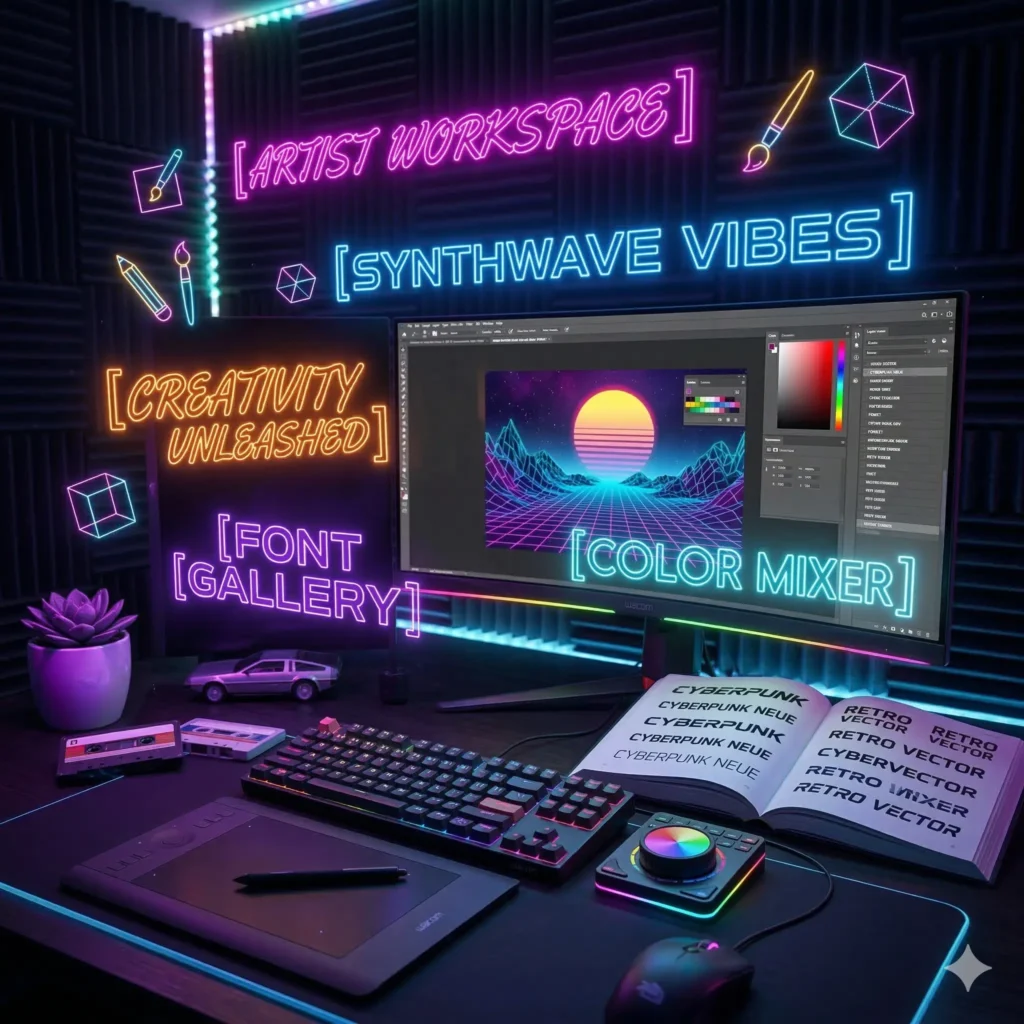
Nobody wants to read boring, system-default text. Exploring how to add captions in premiere is only half the battle; making them look incredibly aesthetic is where your true artistry shines.
- 🖋️ Ditch the default Arial font immediately and download bold, modern, highly legible typefaces like Montserrat or heavily stylized kinetic fonts. 🖋️
- ✨ Adjust the tracking slightly to give your letters a bit more breathing room, which subconsciously feels significantly more premium and cinematic. ✨
- 📐 Play heavily with the Y-axis positioning; placing text dynamically in the center of the screen is currently outperforming traditional lower-third placement. 📐
- 🔠 Use all-caps formatting strictly for high-energy, fast-paced videos, but stick to traditional sentence case for slower, more deeply emotional storytelling. 🔠
- 🖌️ Apply a thick, contrasting stroke or outline to your text if you are creating heavily layered gaming content that requires absolute maximum visibility. 🖌️
- 🎭 Mix two entirely different font weights within the exact same sentence to beautifully highlight and emphasize the most important keyword of your phrase. 🎭
- 🌟 Introduce a very slight outer glow effect if your footage has a dreamy, highly ethereal, or romantic late-night visual aesthetic. 🌟
- 🪞 Ensure your text styling remains completely consistent throughout the entire video because random font changes are incredibly jarring to the human eye. 🪞
Auto-Transcription Secrets for How to Add Captions in Premiere Flawlessly
Adobe’s Speech to Text engine is remarkably powerful, but it is not completely infallible. Mastering how to add captions in premiere means knowing exactly how to manipulate the AI to give you flawless results.
- 📖 Create a custom dictionary within Premiere to explicitly teach the software how to correctly spell your unique brand names, slang, or technical jargon. 📖
- ⚡ Use the essential sound panel to tag your primary audio as “Dialogue,” which automatically triggers the AI to prioritize that specific track for processing. ⚡
- 🎯 If the audio is incredibly muffled, consider running it through Adobe’s Enhance Speech AI tool first to entirely rebuild the vocal frequencies for perfection. 🎯
- 📝 Do a rapid visual scan of the text block for missing punctuation, as the AI sometimes forgets to add crucial question marks during highly energetic speech. 📝
- ✂️ Watch out for the software entirely misinterpreting heavily overlapping dialogue; you will likely need to manually type out these chaotic conversational moments. ✂️
- 🎧 Trust your actual ears over the generated text; if the transcript says one thing but your subject clearly mumbled another, change it to match reality. 🎧
- 🔄 If the initial transcription is completely corrupted due to a software glitch, simply clear the transcript and re-analyze the timeline from scratch. 🔄
- 💡 Export your perfectly corrected transcript as a raw text file to use as a highly optimized SEO blog post to accompany your final video upload. 💡
Cinematic Text Styles and How to Add Captions in Premiere Like a Pro
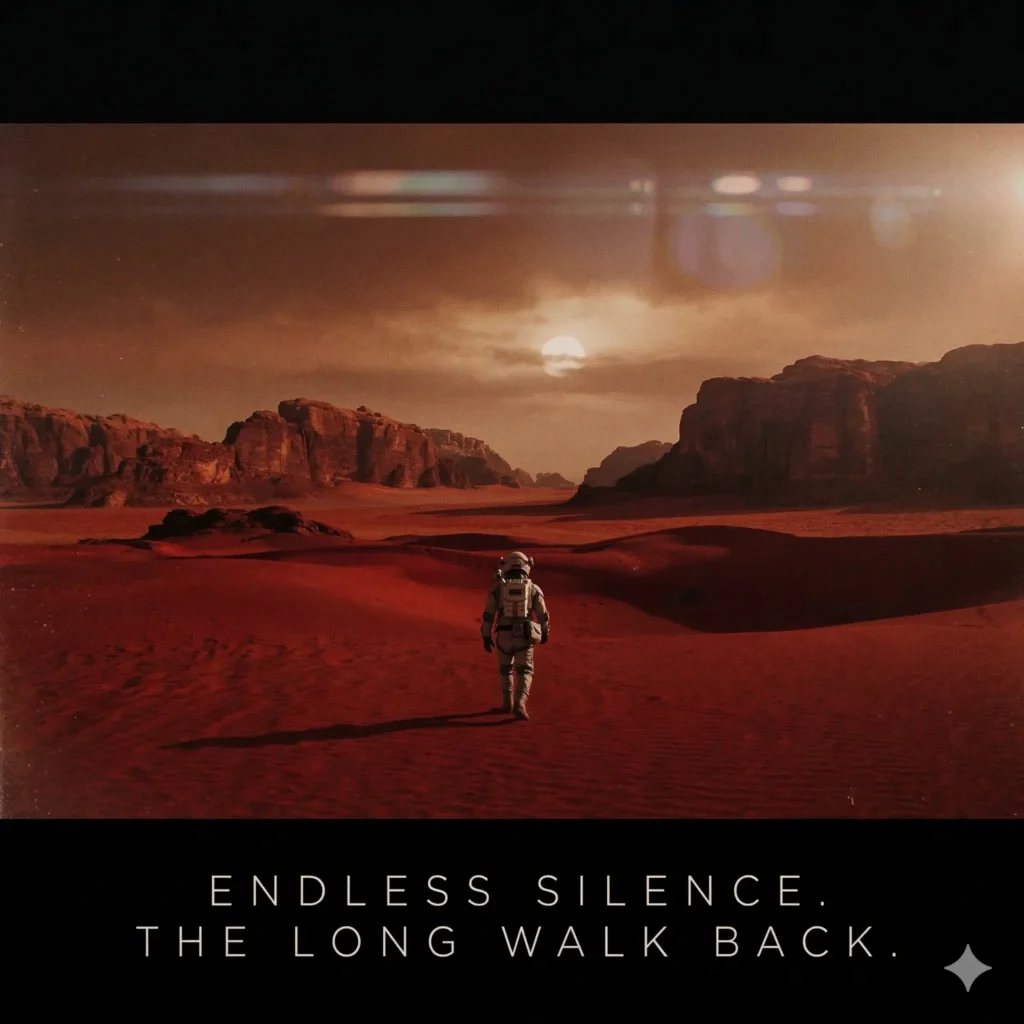
If you are creating short films, travel montages, or high-end commercials, your text needs to feel like it belongs in a movie theater.
- ⏳ Allow your captions to intentionally linger on the screen for an extra half-second after the person finishes speaking to let the emotional weight settle. ⏳
- 🎥 Pair your text with a beautifully subtle anamorphic lens flare effect that gently sweeps across the letters during an intense transition point. 🎥
- 🤫 Less is entirely more; if the visual tells the entire story beautifully, only caption the dialogue that is absolutely crucial to the narrative plot. 🤫
- 🕯️ Avoid aggressive background boxes entirely and let the typography sit naked over the beautifully lit, highly composed cinematography of your shot. 🕯️
- 📐 Use the exact same font family for your captions as you do for your opening title sequence to create a deeply cohesive visual language. 📐
- 🎵 Sync the appearance of your subtitle blocks strictly to the underlying musical beat drops rather than just the raw audio waveforms. 🎵
- 🎬 Treat your captions as an actual layer of the visual composition, ensuring they never cover the subject’s eyes or highly important background details. 🎬
- ✨ Embrace the beautifully quiet moments by simply leaving the screen completely devoid of text during long, heavily emotional establishing shots. ✨
Social Media Optimization and How to Add Captions in Premiere for TikTok
Short-form platforms completely dominate digital consumption, and they have entirely unique rules. When figuring out how to add captions in premiere for TikTok, Reels, or Shorts, you must prioritize fast reading, bold styling, and safe-zone compliance.
- 🎯 Place your text aggressively high up in the middle of the screen, completely avoiding the bottom third where the caption and user handle live natively. 🎯
- 🔥 Add an incredibly subtle but rapid scale pop animation to every single word as it appears to keep the viewer’s highly stimulated brain locked in. 🔥
- 🤬 Use creative symbols to naturally censor heavy profanity, as algorithms aggressively shadowban videos that contain fully spelled-out explicit curse words in text. 🤬
- 🤣 Incorporate relevant emojis directly into your text layers to instantly visually translate the emotion and break up the monotonous aesthetic of bare words. 🤣
- 🎨 Use a heavy, completely opaque background box to guarantee your text is completely readable regardless of how chaotic the video behind it gets. 🎨
- 🚀 Highlight the most important keyword in every single sentence by changing its color to a brilliant, eye-catching neon green or vibrant pink. 🚀
- ⏱️ Pacing is absolutely everything; ensure your text appears on screen the exact millisecond the word is audibly spoken to create a satisfying visual rhythm. ⏱️
- 🔠 Stick to incredibly bold, highly rounded, sans-serif fonts like Proxima Nova or the incredibly popular bold modern alternatives for maximum mobile legibility. 🔠
- 📈 Export with baked-in captions always, because relying purely on the native auto-captions within the social apps completely ruins your custom aesthetic layout. 📈
Troubleshooting Errors When Exploring How to Add Captions in Premiere
Even the best editors encounter incredibly frustrating bugs. Learning how to add captions in premiere also means knowing how to fix the software when it completely breaks down.
- 🔄 Clear your media cache entirely by going to preferences; a deeply corrupted cache is the number one cause of bizarre text rendering visual glitches. 🔄
- ✂️ If your text edits are simply not applying globally, make absolutely sure you have selected the caption blocks on the timeline, not just the transcript. ✂️
- ⌨️ Sometimes the text panel severely lags behind your actual typing; simply save the project, gracefully close Premiere, and restart your computer to fix it. ⌨️
- 📐 If your text is rendering weirdly jagged or heavily pixelated, ensure your playback resolution in the program monitor is set to full, not a quarter. 📐
- ⚠️ Upgrading an caption track from an older premiere file format can break styling; simply right-click and seamlessly upgrade the track to graphic layers. ⚠️
- 🖥️ Ensure your GPU acceleration is fully enabled in your project settings, as rendering heavy text styles relies entirely on your graphics card processing power. 🖥️
- 🎧 If the AI transcribed the completely wrong audio track, manually solo the specific dialogue track you actually want and simply run the process again. 🎧
- 🧲 When caption blocks refuse to perfectly snap together, zoom all the way into the timeline to ensure a micro-frame gap isn’t completely blocking the movement. 🧲
- 💡 Never panic when the software crashes mid-edit; rely on your highly configured auto-save vault to instantly recover your beautiful text styling progress. 💡
Advanced Animation Techniques for How to Add Captions in Premiere
Static text is incredibly boring for modern audiences. To truly master how to add captions in premiere, you must learn how to animate your words.
- 🪄 Right-click your completed subtitle track and select “Upgrade Caption to Graphic” to entirely unlock full transformative keyframing control over every text block. 🪄
- ✨ Utilize the built-in text animation presets within the Effects panel to rapidly apply complex typewriter reveals without spending hours manually setting keyframes. ✨
- 🔀 Animate the tracking of your text so the letters slowly and beautifully spread apart, visually emphasizing moments of deep realization or highly dramatic tension. 🔀
- 💥 Use heavy directional blur combined with a rapid scale reduction to create a heavy impact effect when someone aggressively yells a specific word. 💥
- 🔄 Keyframe a slight 3D basic rotation to give your text a highly dynamic, slightly tilted aesthetic that feels significantly more modern and deeply kinetic. 🔄
- 🎨 Animate a completely custom gradient color wipe across the text to visually highlight the progression of a highly complex or deeply technical sentence. 🎨
- 📐 Use the exact same ease-in and ease-out velocity curves on your text animations that you apply to your main video transitions for ultimate cohesion. 📐
- 🚀 Remember that advanced animation should always enhance the spoken word, never completely distract the viewer from the actual raw human message. 🚀
Engaging Viewers with How to Add Captions in Premiere Effectively
Captions are not just for accessibility; they are a highly psychological engagement tool.
- ⚡ Pop an incredibly large, bold word directly onto the screen for a single frame to act as a highly stimulating subconscious pattern interrupt for the brain. ⚡
- 🧩 Turn complex sentences into visually digestible lists on screen, making it incredibly easy for viewers to take screenshots and save your content later. 🧩
- 🌟 Strategically delay the final punchline text by a fraction of a second to perfectly build maximum comedic tension before the absolute ultimate visual reveal. 🌟
- 🧲 Use arrows and highly kinetic text that physically points toward the subject’s face to forcefully direct the viewer’s eye exactly where you want it. 🧲
- 🤍 Emphasize deep emotional vulnerability by isolating a single, deeply profound word entirely by itself in the absolute center of a completely black screen. 🤍
Color Grading and Text: How to Add Captions in Premiere Beautifully
Your captions must coexist peacefully with your video’s color palette. An overlooked aspect of learning how to add captions in premiere is understanding color theory.
- ⚖️ Understand relative luminance; if your background is heavily desaturated, your text should also feature a slightly muted tone to avoid looking completely disconnected. ⚖️
- 🖌️ Use the Lumetri Color panel to grade your actual text graphic layer, allowing it to seamlessly inherit the exact same LUT applied to your main footage. 🖌️
- 🌈 When using multi-colored text for hyper-engaging content, ensure the colors sit perfectly opposite each other on the color wheel for maximum visual harmony. 🌈
- 🖤 Black text almost never works on video unless it is placed entirely inside a completely solid, brightly colored background shape for guaranteed absolute readability. 🖤
- 💡 Pay incredibly close attention to your highlight clipping; if your text glows entirely too brightly, it will physically hurt the viewer’s retinas on HDR mobile screens. 💡
- 🌫️ Use a deeply blurred, heavily darkened copy of your text layer placed directly underneath the original to create an organic, beautiful background separation effect. 🌫️
- 🎬 Test your final text colors strictly in black-and-white mode to guarantee they still maintain perfect, undeniable contrast regardless of the specific screen display. 🎬
- 👗 Match your primary highlight text color perfectly to a beautifully dominant color naturally occurring in your subject’s actual physical wardrobe or surrounding environment. 👗
- 🌟 Remember that true color mastery is highly subjective, but ensuring your text remains perfectly legible without destroying the visual mood is always the priority. 🌟
The 2026 Trends on How to Add Captions in Premiere for Creators
Video editing styles evolve at an incredibly rapid pace. To stay relevant, mastering how to add captions in premiere requires adapting to the absolute latest 2026 digital trends.
- 🪞 The glassmorphism text trend is massive, utilizing heavily blurred, highly translucent background boxes that beautifully distort the actual video footage lying behind them. 🪞
- 🎞️ Gen Z heavily favors an “anti-design” aesthetic, deliberately utilizing clunky, highly nostalgic retro computer fonts to ironically contrast high-definition, highly expensive camera footage. 🎞️
- 🌈 Gradients are officially back, but they are incredibly fluid; animating liquid color shifts entirely within the actual text fill is a major high-retention editing strategy. 🌈
- 📱 Captions that mimic actual iMessage or heavily customized digital text message bubbles are performing incredibly well for highly conversational, deeply personal storytelling videos. 📱
- ⚡ The “One Word at a Time” pacing strategy is completely essential for short-form retention, rapidly flashing singular massive words directly in the exact center frame. ⚡
- 🎭 Using AI-generated custom handwriting fonts that perfectly mimic your actual real-life handwriting adds an undeniably beautiful layer of raw human authenticity. 🎭
- 🎨 Monochromatic text styling is fading; highly aggressive, multi-colored sentences where every single word is a completely different neon color are heavily trending right now. 🎨
- 🚀 Creators are deliberately leaving minor grammatical errors in their raw transcriptions because highly authentic, slightly flawed content feels significantly more human and deeply relatable. 🚀
Keyboard Shortcuts to Master How to Add Captions in Premiere
If you are using your mouse to navigate the text workspace, you are actively losing money and precious time. These shortcuts are the absolute lifeblood of elite, high-speed professional editors.
- 🔠 Select multiple text clips and press Ctrl+Shift+K to instantly slice completely through all of them exactly where your current playhead is physically positioned. 🔠
- 🖥️ Press the Tilde key (~) while hovering your mouse entirely over the text panel to instantly expand it to beautiful, full-screen glory for highly focused reading. 🖥️
- ⏪ Use the J, K, and L keys to rapidly shuttle back and forth through your audio exactly while keeping your eyes firmly locked on the generated transcript. ⏪
- 🎯 Map a custom shortcut directly to the “Create Captions” button so you never have to manually hunt for it deeply hidden within the complex dropdown menus again. 🎯
- 🎨 Program your absolute favorite text style preset to a specific number key, allowing you to instantly apply complex formatting without ever opening the graphics panel. 🎨
- 🧲 Press ‘S’ to rapidly toggle your timeline snapping feature on and off when you need incredibly micro-precise text alignment that the software actively fights against. 🧲
- 🎧 Use Shift+Spacebar to initiate a completely seamless, continuous playback loop over a highly complex, difficult-to-transcribe section of heavily overlapping human dialogue. 🎧
- 💡 Completely memorize the Ctrl/Cmd+Z undo command because when heavily experimenting with complex text styles, you will absolutely, inevitably make an incredibly terrible aesthetic decision. 💡
Accessible Design Rules for How to Add Captions in Premiere
Learning how to add captions in premiere with strict accessibility standards ensures that hearing-impaired viewers, non-native speakers, and silent-scrollers can all deeply enjoy your content without encountering highly frustrating visual barriers.
- 📏 Always ensure your text utilizes a highly robust, mathematically proven contrast ratio of at least 4.5:1 against the underlying video background for strict ADA compliance. 📏
- 🔠 Never use highly complex, deeply cursive, or overly decorative fonts for main subtitles, as they are completely unreadable for individuals with severe dyslexia or visual impairments. 🔠
- ⏱️ Keep your reading speed comfortably below 160 words per minute; packing entirely too much text into a singular frame physically exhausts the human brain completely. ⏱️
- 🔊 Always explicitly use deeply descriptive brackets to beautifully indicate crucial non-speech audio cues, such as [Heavy rainfall] or [Upbeat electronic music playing]. 🔊
- 🌍 Ensure your line breaks happen entirely naturally at logical grammatical pauses, never violently splitting a core concept completely in half across two completely separate screens. 🌍
- 🎨 Avoid using incredibly bright, highly saturated red and green text combinations directly next to each other to beautifully accommodate viewers with profound color blindness. 🎨
- 📐 Maintain a consistent, highly predictable text placement so visually impaired viewers never have to actively physically hunt around the screen to locate the next word. 📐
- 🖤 Utilize a deeply solid, completely black background bounding box if your underlying footage contains highly chaotic, rapidly flashing, or deeply distracting visual movement behind the text. 🖤
- 🤫 Explicitly transcribe deeply emotional, non-verbal vocalizations like heavily sighing, quietly crying, or aggressively laughing to convey the true, raw mood accurately. 🤫
- 🌟 Never use all-caps for entirely long, complex sentences; standard sentence case is scientifically proven to be significantly easier for the human brain to rapidly process. 🌟
Maximizing Viewer Retention by Knowing How to Add Captions in Premiere
At the end of the day, your edits must perform well. Understanding how to add captions in premiere is ultimately about deeply manipulating viewer retention metrics.
- 🧠 The absolute first three seconds of your text hook must be visually explosive, deeply compelling, and practically demand that the viewer physically stops scrolling entirely. 🧠
- 📈 Use incredibly bright, highly distinct accent colors specifically on the deeply emotional keywords to subconsciously instruct the viewer exactly how they should feel right now. 📈
- 🚀 Ensure your highly polished, beautiful captions accurately reflect the raw, authentic energy of your brand, because viewers instantly swipe away from completely incongruent text aesthetics. 🚀
- 🧲 Use highly interactive text prompts seamlessly integrated into your subtitles, like explicitly asking viewers to comment their absolute favorite specific moment from the entire video. 🧲
- 🤍 Strip away absolutely all unnecessary, highly complicated text styling during a deeply vulnerable, emotionally raw story to respectfully honor the heavy weight of the moment. 🤍
- 💥 Never let a single caption block stay completely static on screen for more than four seconds; if the sentence is long, physically break it into highly rapid, bite-sized pieces. 💥
- 📐 Master the deep art of the visual “pattern interrupt”; violently changing your entire font style halfway through a heavily educational video instantly completely resets the viewer’s attention. 📐
- 🌟 Consistently study exactly how the absolute highest-performing creators in your specific niche beautifully stylize their text and seamlessly adapt their core strategies to your unique workflow. 🌟
- 🏆 Truly mastering text retention means recognizing that your beautiful words are no longer just passive translations; they are actively highly aggressive, deeply hypnotic visual characters in your story. 🏆
💡 Expert Tip: How to Deliver Captivating Captions for Maximum Impact
Integrating text into your digital strategy is a brilliant way to increase engagement and extend dwell time (which generative algorithms love). But the visual delivery is just as important as the actual words. Here is how to execute captivating captions flawlessly across your workflow in 2026:
1. The “Kinetic Pacing” Strategy (Short-Form): Standard block text is dead for short-form content. Break the pattern. When editing a high-energy Reel, use Premiere’s “Upgrade to Graphic” feature to break your sentence into single words. Animate each word to pop onto the screen exactly as the syllable is spoken, using alternating colors (e.g., White and Yellow) to emphasize the most important verbs. This creates a highly addictive visual rhythm that the brain cannot help but follow to the end.
2. The “Emotional Anchor” Strategy (Documentary/Long-Form): When the underlying audio gets incredibly emotional or vulnerable, aggressive text animations ruin the mood. Instead, strip everything back. Use a thin, elegant serif font, completely remove the background box, and fade the text in slowly over a second. It is intimate, respectful, and instantly shifts the dynamic from a chaotic social media post to a deeply connected, cinematic experience.
❓ Q&A: Mastering Your Premiere Text Workflow
1. Is Adobe Premiere’s auto-transcription actually accurate in 2026? Yes, it is remarkably precise. The AI engine processes complex audio and regional dialects significantly better than older versions. However, it still occasionally struggles with highly specialized technical jargon, heavily overlapping voices, or extreme background noise. Always perform a rapid manual proofread before officially generating your caption blocks.
2. Why are my captions completely grayed out and un-editable? If you generated a standard subtitle track, the text acts differently than a standard visual layer. To unlock full keyframing, motion, and deep custom styling capabilities, you must select your caption blocks, right-click, and select “Upgrade Caption to Graphic.” This converts them into highly editable Essential Graphics layers.
3. What exactly is the best font for social media captions? The absolute best fonts are bold, incredibly clean, sans-serif typefaces. Proxima Nova, Montserrat, and The Bold Font are highly popular because they remain entirely readable on small, incredibly bright mobile phone screens. Avoid thin, cursive, or highly complex fonts, as they significantly reduce the viewer’s reading speed and cause them to swipe away.
Conclusion
Figuring out how to add captions in premiere does not have to be a deeply frustrating, time-consuming technical battle. By completely understanding the intersection of intelligent software automation, brilliant aesthetic design, and deep psychological viewer retention, you have the incredible power to transform every single video into a highly engaging, algorithmically favored masterpiece.
Remember that in a sea of endlessly scrolling digital noise, your perfectly timed, beautifully stylized words are your absolute ultimate superpower. Stop overthinking the incredibly complex timeline, apply these highly optimized strategies to your workflow, and hit that glorious export button. Your final cut looks absolutely incredible.

Amelia Ross from New York is an experienced caption writer who loves crafting words that capture attention and spark interest. Her captions are designed to be memorable and relatable.